
After many requests, some coding, and blood, sweat, and tears caffeine, the wait is finally over: you can now add team members to your account.
That said, in this article, you'll learn:
-
What plans have the ability to create a team (and if not, how to upgrade)
-
How to add and manage team members
-
The different roles of team members and what they can do
First things first:
What plans have the ability to create a team?
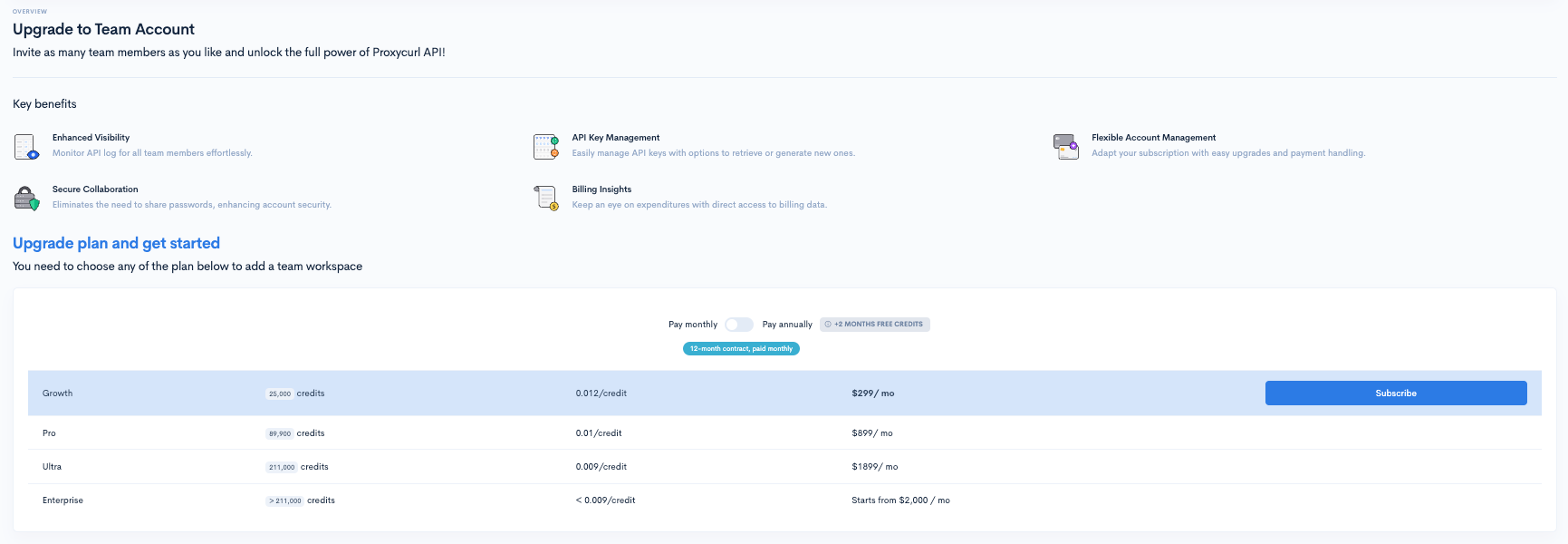
All plans except our monthly "Starter" plan can create a team. You can view our plans here.
This means that even on the "Starter" plan you can create a team if you opt for annual billing.
So, really, you should ask: what plans don't have the ability to create a team?
How to create your first team
If you log into the Enrich Layer dashboard, you should see this link on the left navigation bar:
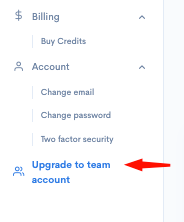 Once clicked, you'll be redirected to our team's page where you can either upgrade your account (if you're on a monthly "Starter" plan):
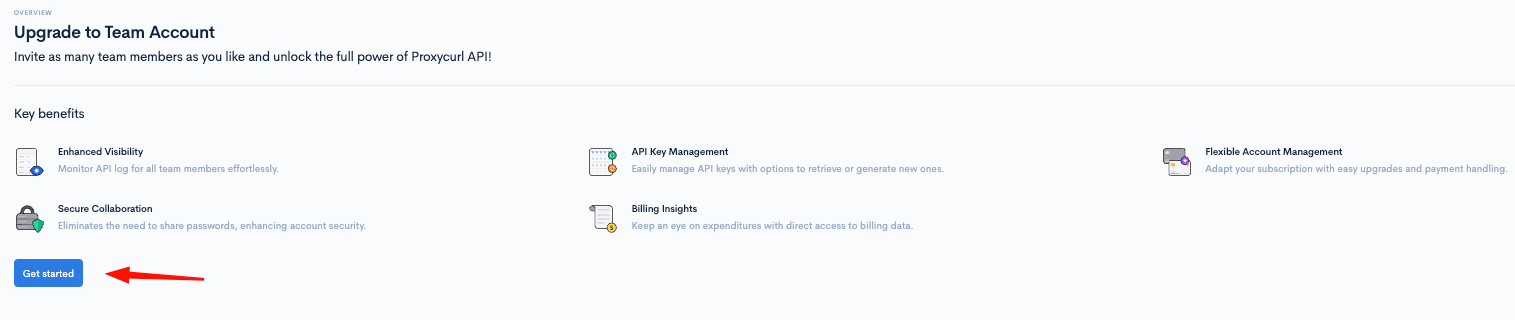
 Or, if you're already on an eligible plan, click the "Get started" button:
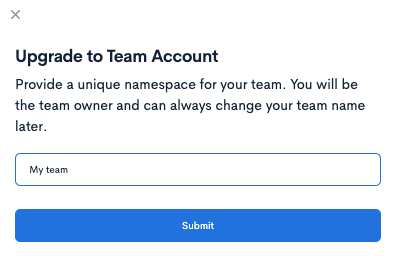
 You'll then be asked to pick your team name:
 After that, you're now the proud owner of a Enrich Layer team
 It's a very simple process all done with an email:
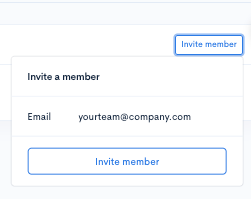 All they need to do is click the link sent via email by us. They'll then be asked to create their account and automatically added to your team.
 If an individual is an admin, they'll also have the ability to make others admins or remove team members (but not team owners).
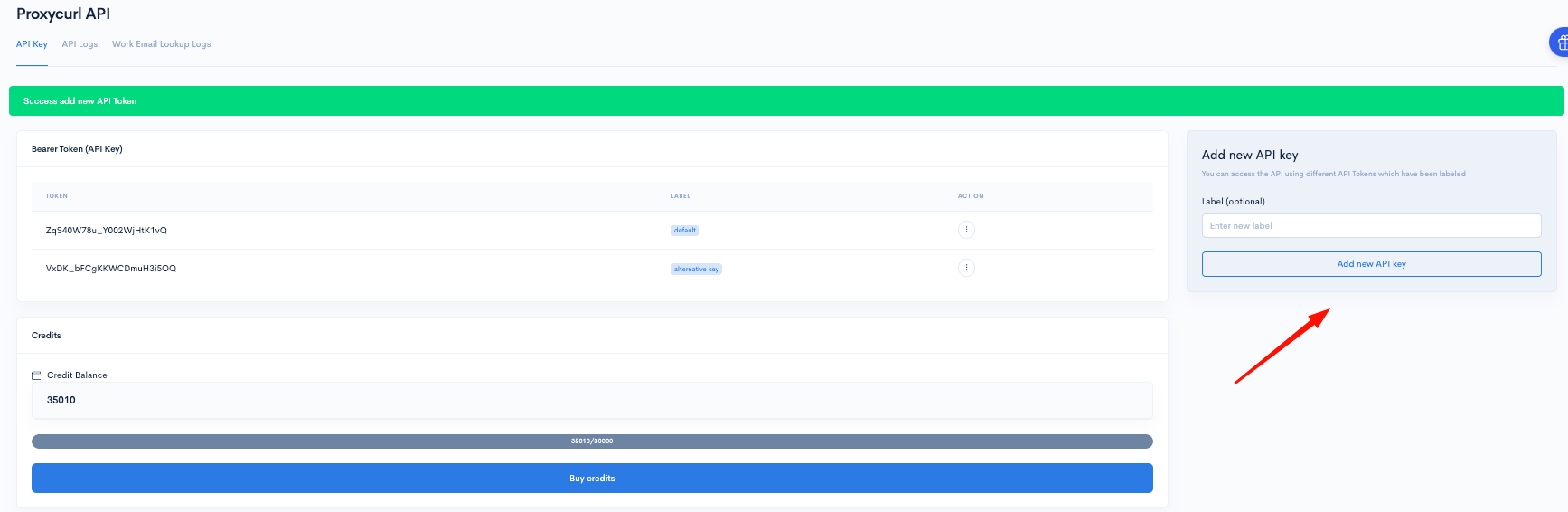 Your team members will also have the ability to view your credits available or top up with the team owner's payment method on file.
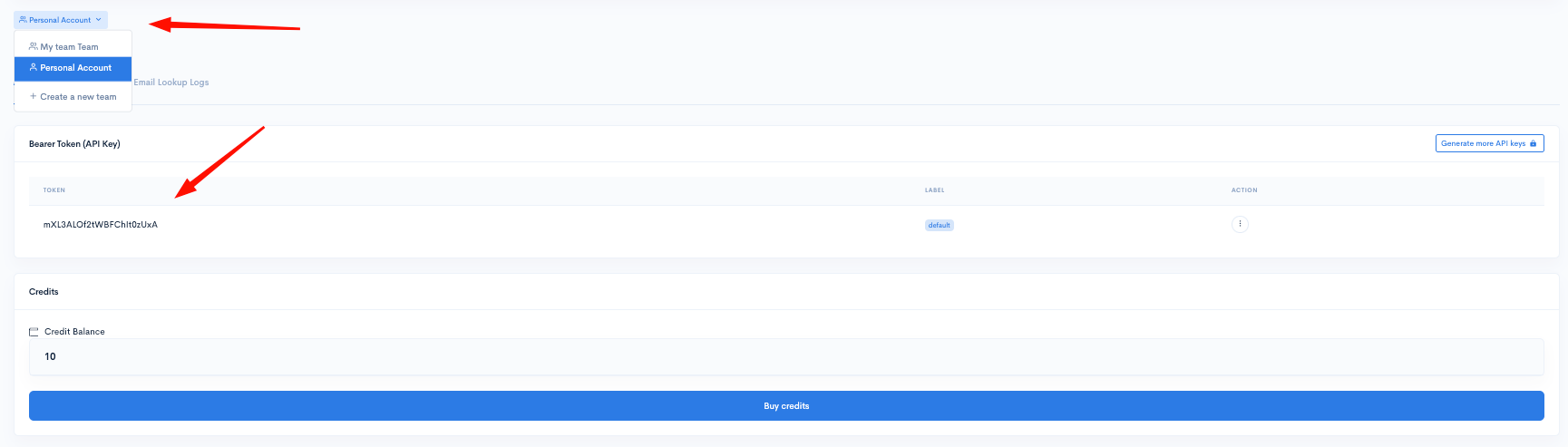 You can then add API keys as a team member shown exactly the same way as a team owner above.